Outlook Inbox Not Updating: Common Causes and Solutions
Microsoft Outlook users may encounter an "Inbox not updating" error, preventing new emails from appearing. This issue can stem from various issues, including incorrect settings, conflicting add-ins, or synchronization problems.
Microsoft Outlook users may experience the critical issue of their inbox failing to update, which prevents new emails from appearing. This problem can arise from several sources, including incorrectly configured send/receive settings, unstable internet connections, or conflicts with Outlook add-ins.
Initial troubleshooting steps often involve basic checks. Users are advised to restart both the Outlook application and their device. Ensuring Outlook is updated to the latest version and verifying the internet connection's stability are also key. Checking email availability via Outlook Web Access (OWA) can help determine if the issue is application-specific.
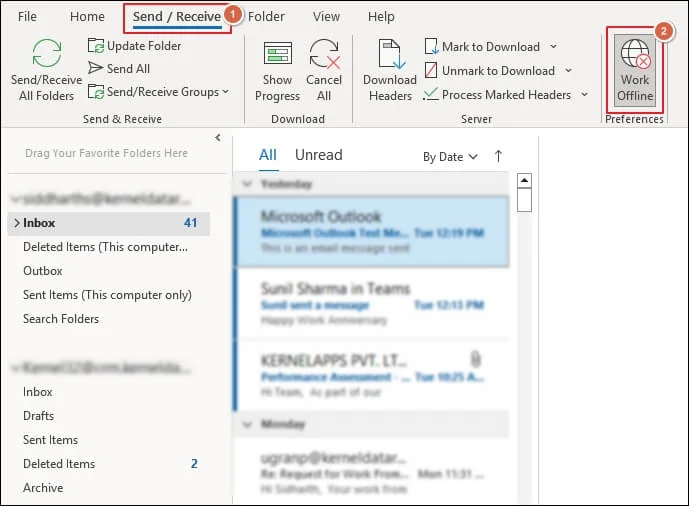
If basic steps do not resolve the syncing problem, more advanced solutions may be required. Disabling 'Work Offline' mode is crucial, as this prevents Outlook from synchronizing new messages. Users should navigate to the 'Send/Receive' tab and ensure this mode is deactivated.
Manual synchronization or adjusting send/receive group settings can also be effective. Users can manually trigger a sync by pressing F9 or selecting 'Send/Receive All Folders'. Within the group settings, ensuring that automatic send/receive is scheduled at regular intervals, such as every five minutes, is important.
Faulty add-ins are another common culprit for synchronization failures. To diagnose this, users can launch Outlook in Safe Mode by running 'Outlook.exe /safe'. If the inbox updates correctly in Safe Mode, it indicates that an add-in is likely causing the problem. Add-ins can then be disabled one by one to isolate the problematic component.